Free download
- First 10 scanned cards are free
- Adding cards by hand is always free
Scan and sort business cards
Cardwisely turns the business cards you collect into a table you can search.
Illustration: a bilingual business card for Grace Chen of Polaris Design Studio is scanned. Her name, company, title, mobile number and email move into the rows of a new contact, and the card is filed in the Partners group.
01 / How it works
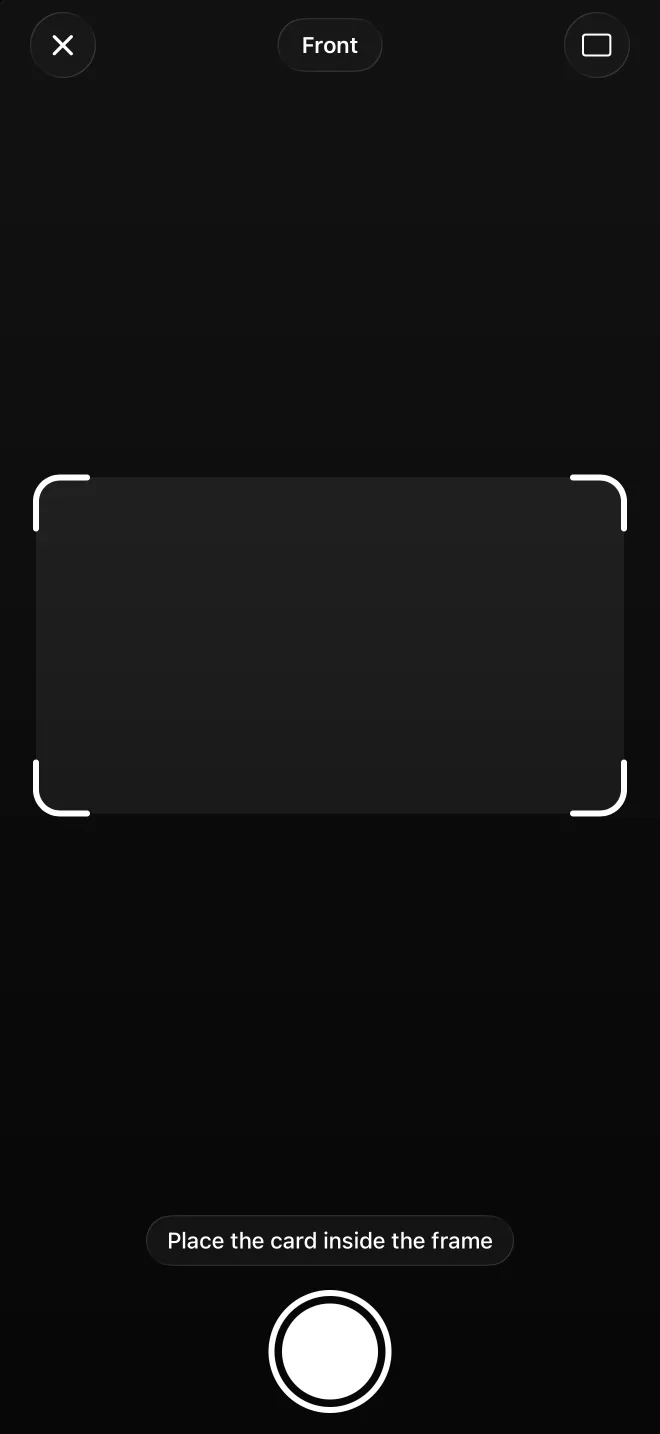
Line a card up inside the camera's guide frame, or pick photos you already have. Cardwisely reads the front and the back, in English and Chinese.
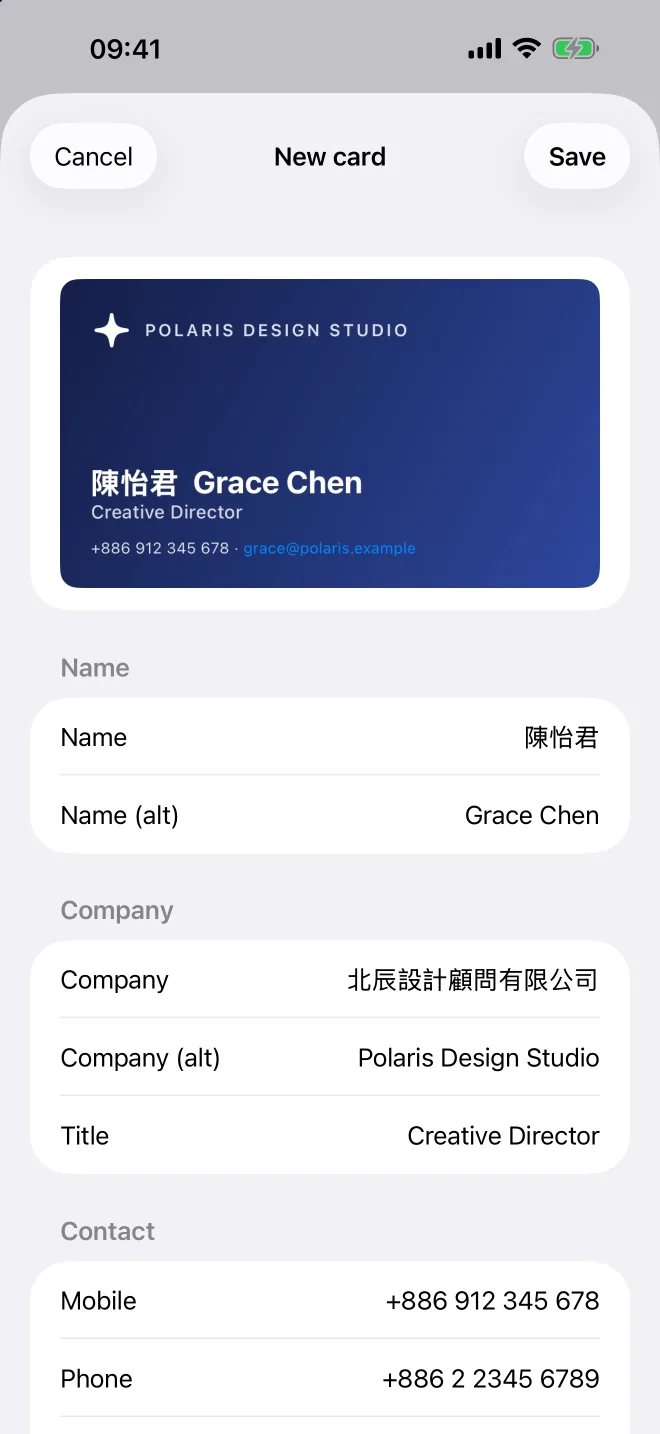
It fills in name, company, title, phone, email, website and address. Contact QR codes fill in what the text missed. You review before saving, and you can tap a line of text to move it into the right field.
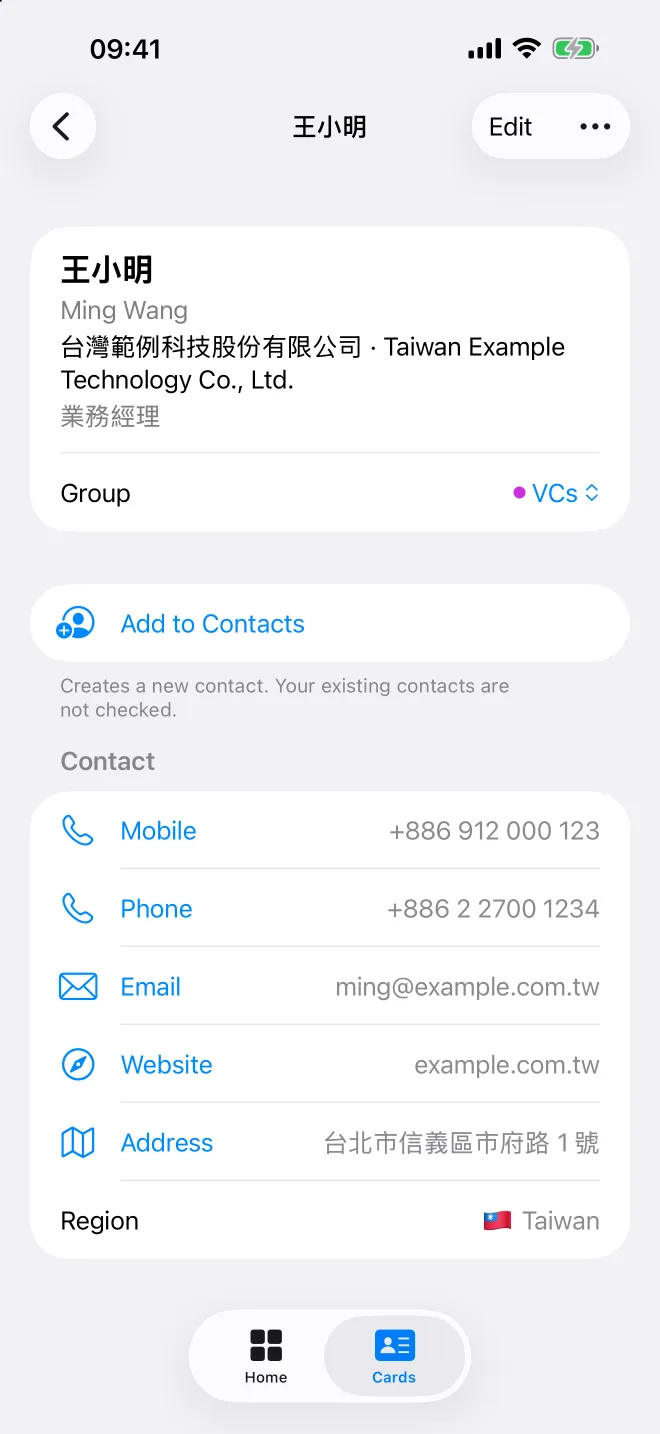
Put the card in a group and it joins the rest of your table. From the card you can call, email, or open the address in Maps.
02 / Sort and find
Collecting cards is the easy part. These are the tools for finding the right person later.
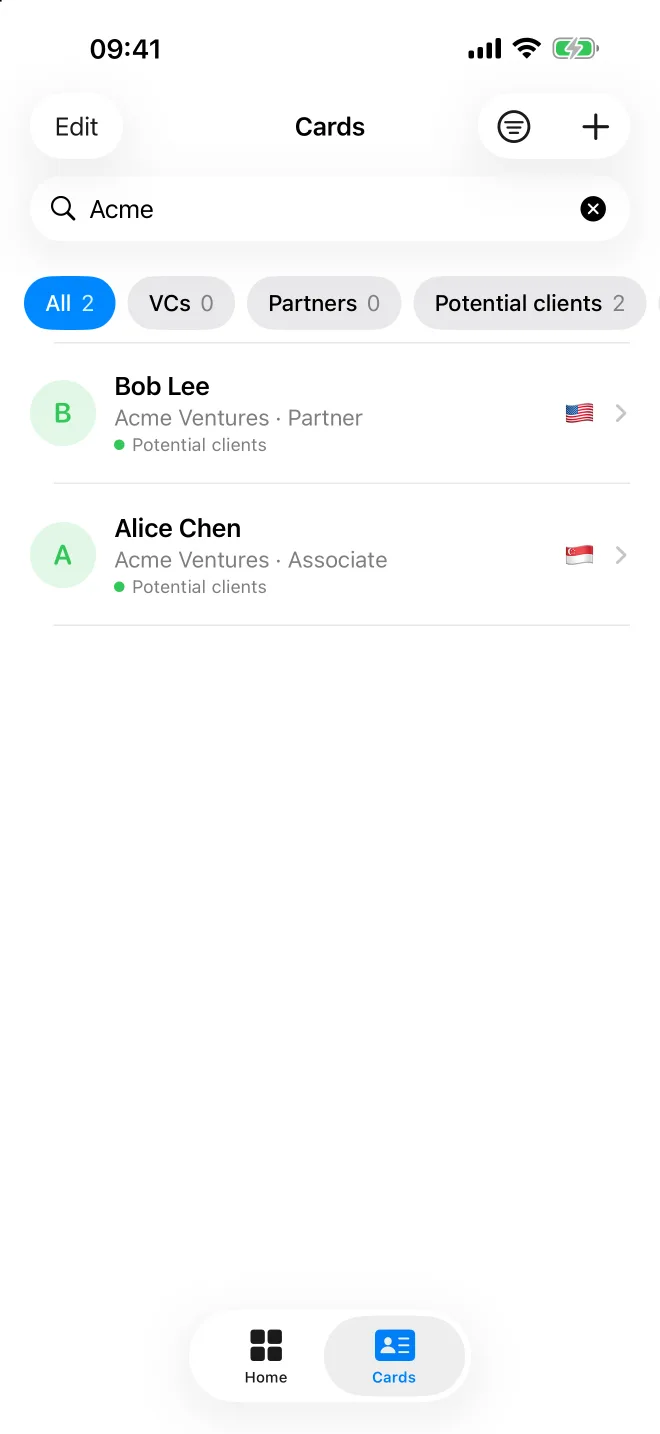
Start with VCs, Partners, Potential clients, Might help in future and Not relevant now. Rename them, add your own, and put them in the order you want.
Search by name, company, email or phone. Filter by group, or by country or region.
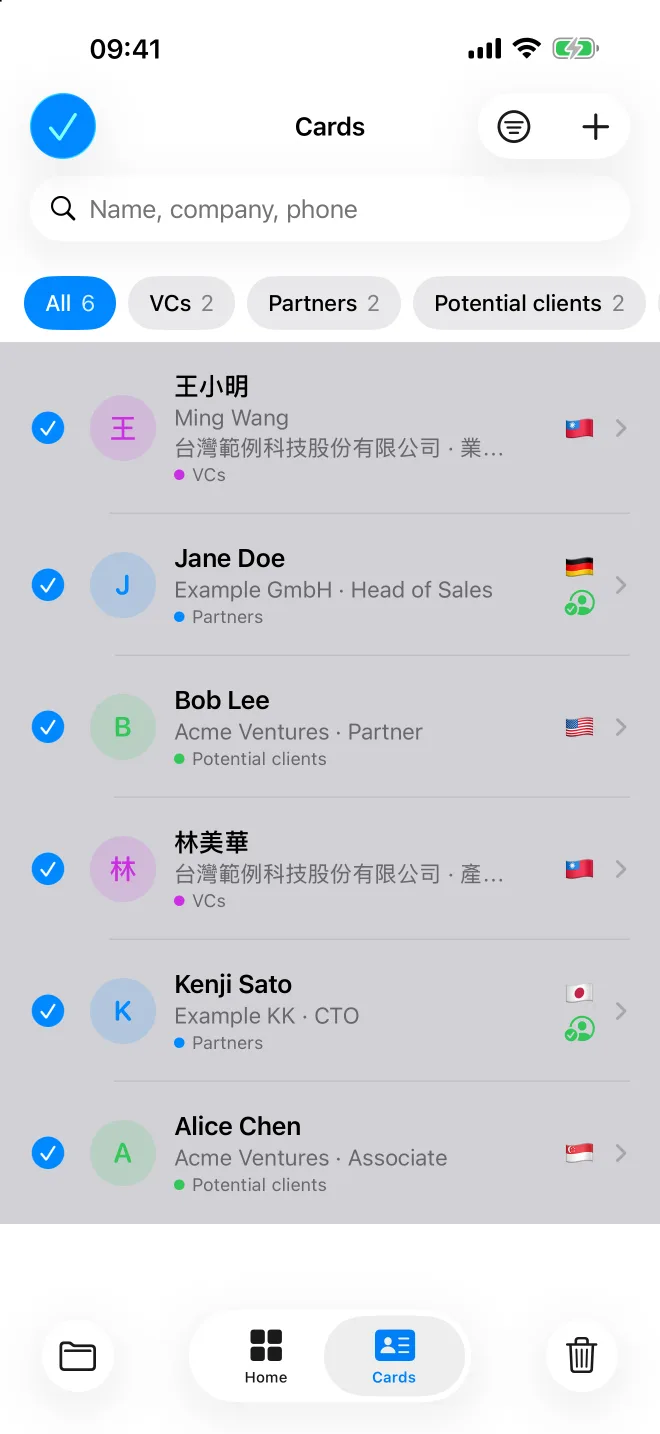
Select as many cards as you like, then move or delete them at once.
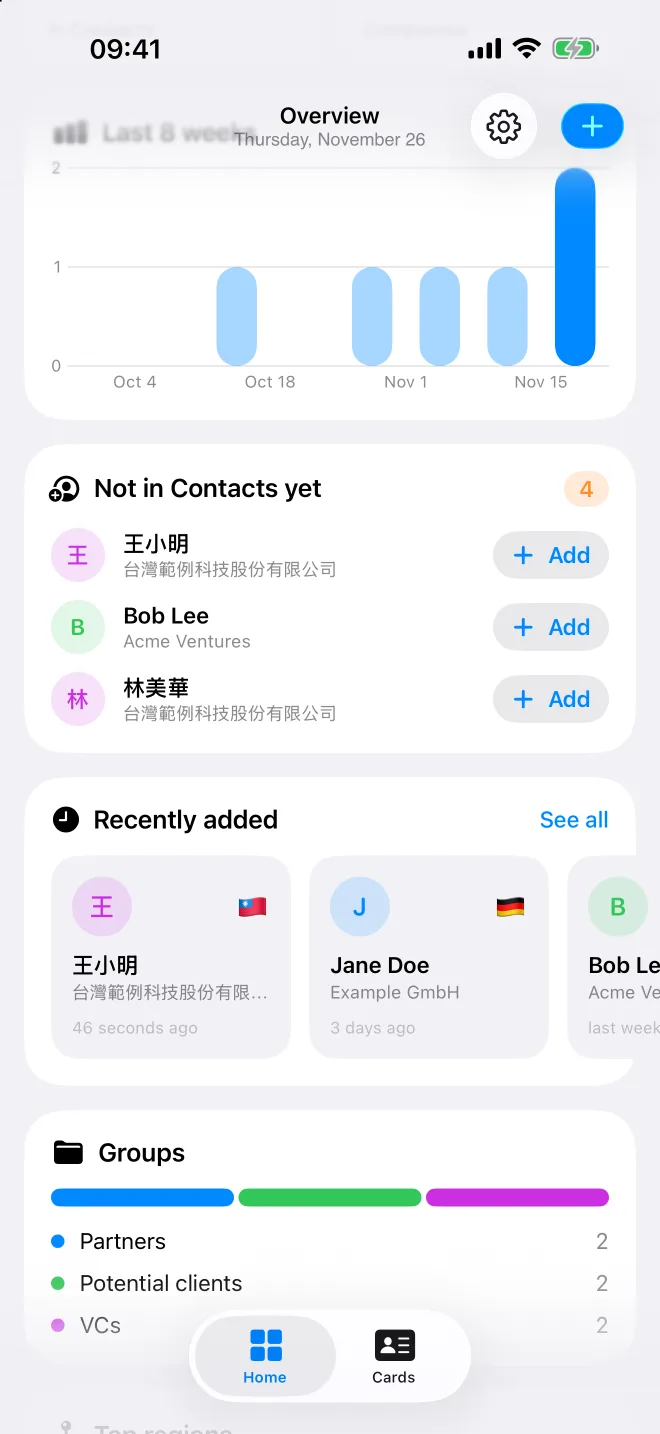
See which new contacts are not in Contacts yet.
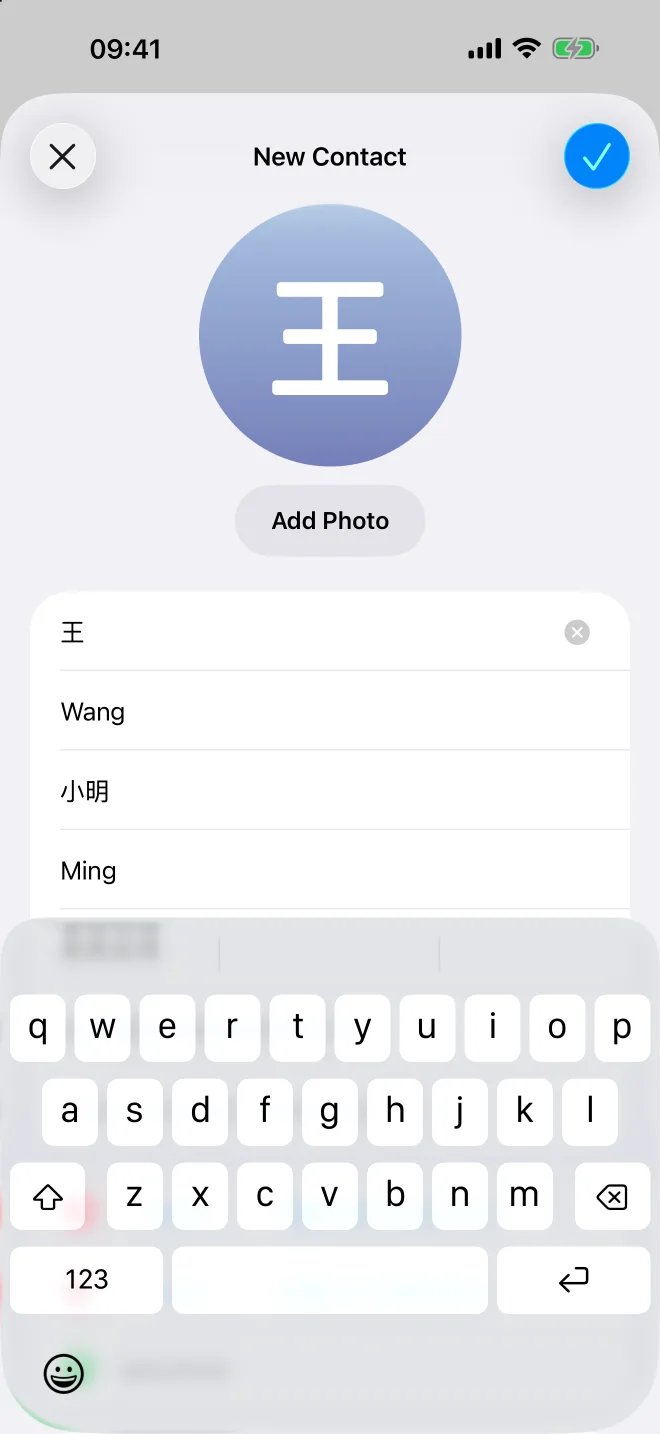
One tap opens the standard new-contact screen. You confirm the contact; the app never reads your address book.
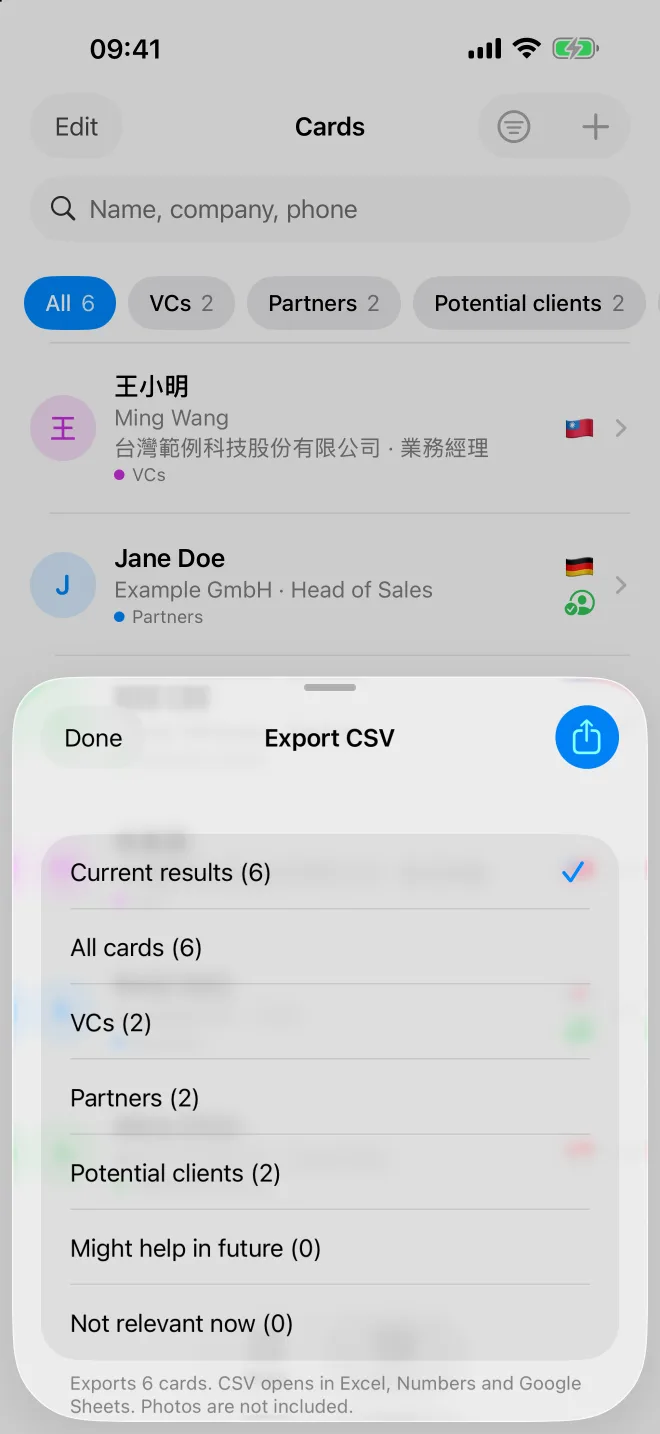
Export all cards, the current results, or one group. The file opens in Excel, Numbers and Google Sheets.
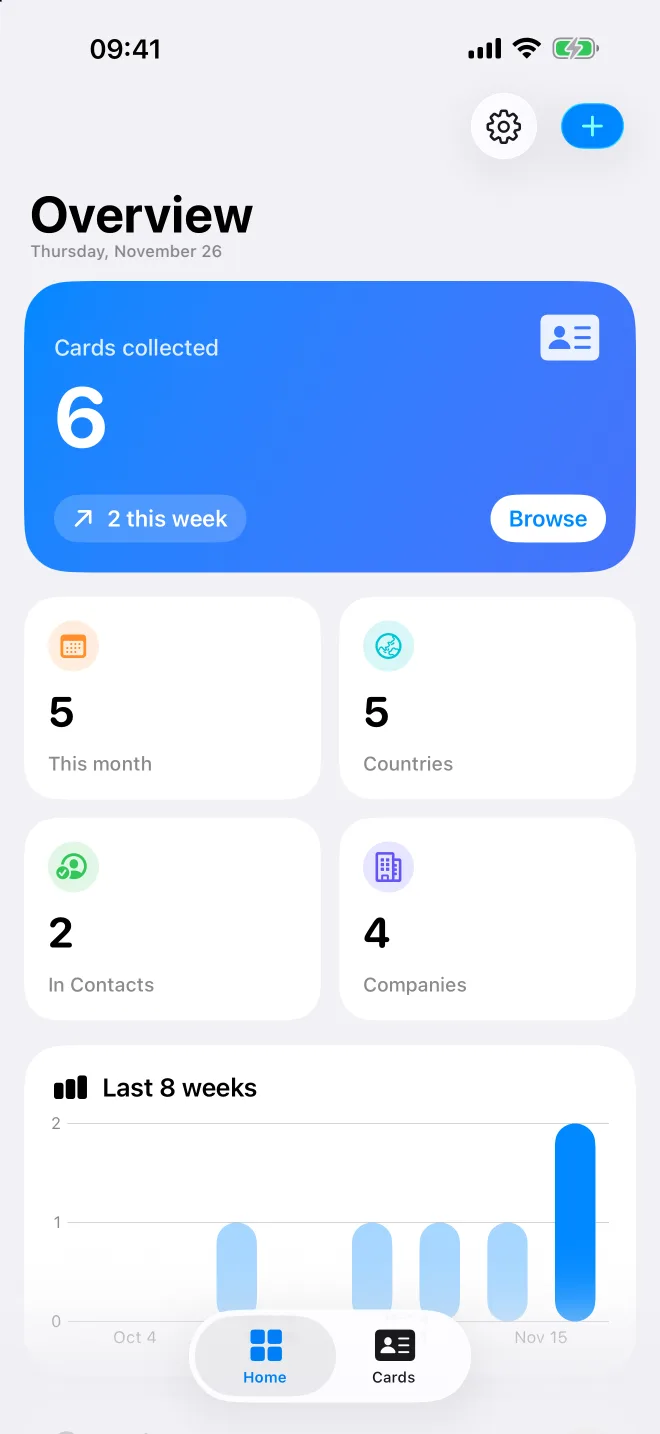
03 / Privacy
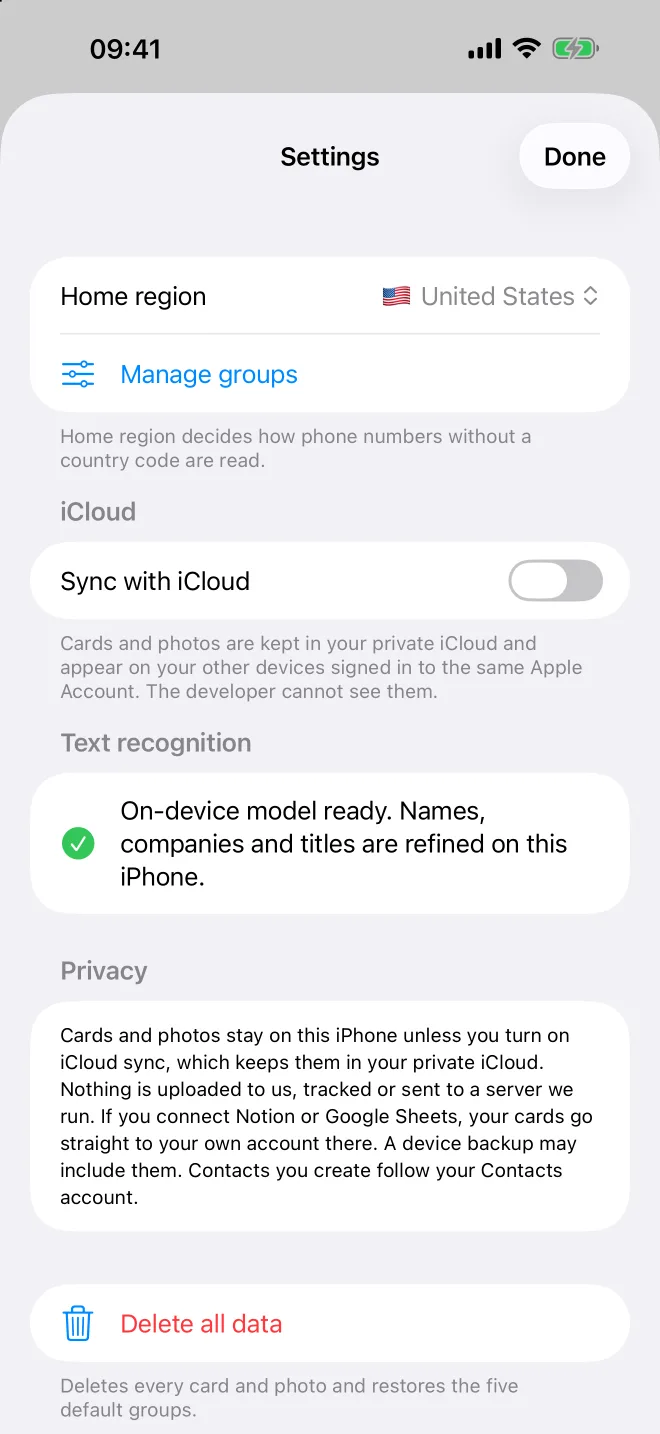
App Store privacy labelData Not Collected
04 / Pricing
TWD30per month
TWD300once, for life
The monthly subscription renews automatically unless it is cancelled at least 24 hours before the end of the current period. Manage or cancel it in Settings > Apple Account > Subscriptions. See the terms.

Cardwisely is for iPhone and needs iOS 26 or later. It is available in English and Traditional Chinese.
Coming soon to the App Store